1.
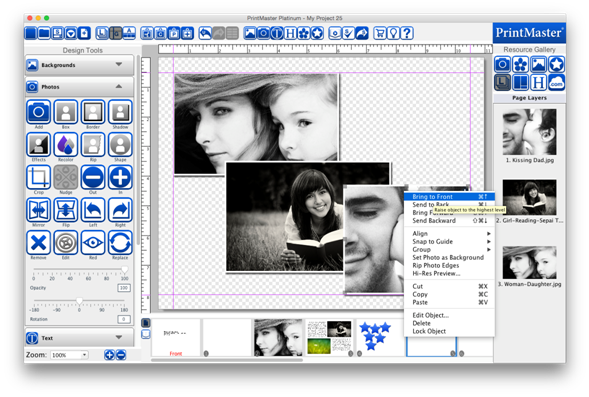
Select the object to adjust.
2.
Go to the Arrange menu > Order and select the desired
action.
·
Bring to Front – Places the
object on top of all other objects.
·
Send to Back – Places the
object behind all other objects.
·
Bring Forward – Moves the
object up one layer.
·
Send Backward – Pushes the
object back one layer.
·
Right-clicking on an object also allows you to adjust the
layer.
Layers Gallery
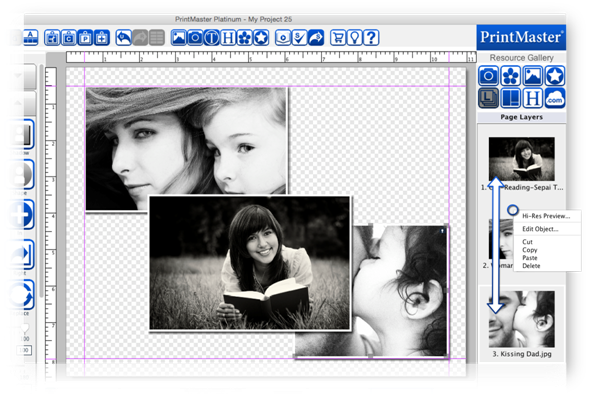
Another way to view and sort object layers is by using the Layers gallery.
1. Select the layers icon in the gallery panel.
2. Drag the object up or down in the layers panel to adjust the layer order on the page.
· You may select an object by double-clicking on an object layer.
· Right-clicking on an object layer allows you to delete it or bring up edit options.
Related Topics