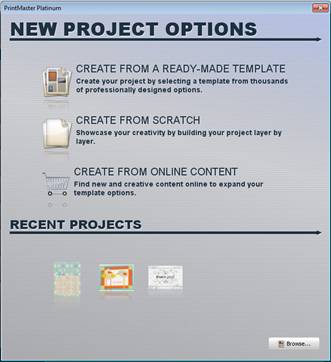
When
you first open PrintMaster, project options are displayed.
Template – Create a project from a pre-designed layout.
Create from Scratch– Create a project from a blank canvas with a custom size.
Open – Open an existing PrintMaster project.
Recent – Click on one of 5 the most recent projects at the bottom to open it.
· Return to this screen when opening the software, or by going to File > New.
Create a project from a pre-designed layout.
1. Select a project type on the left.
2. Next select a desired template in the preview area then click Finish.
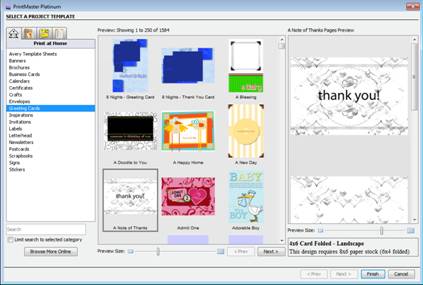
Tabs
at the top sort project types.
· All Categories – All projects, organized by category and subcategory
· Print at Home – All projects, grouped by type
· Print Professionally – Projects that can be printed professionally
· Matching Sets – Projects with coordinating design themes
· Search for a project by typing keywords into the Search field below the project type.
· Drag the Preview Size slider at the bottom to display a larger preview.
· You may need to scroll down to see all of the choices available.
· Click on the plus symbol or arrow next to a type to display subcategories
Create
a project from a blank canvas with a custom or selected size.
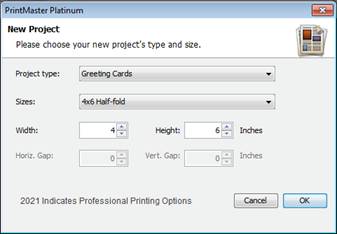
1.
Select a type from the type drop down menu.
2.
Select a suggested size or enter your own, then click OK.
· Some project types (business cards, mailing labels, etc) allow many similar items on a page per print. If the project type supports it, the Horiz. and Vert. Gap settings can be adjusted to set the amount of space between each item when printed.
Related Topics