·
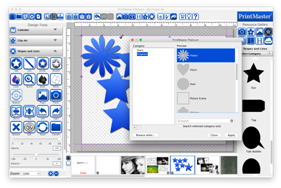
Select a shape on your page with a left-click.
·
Under the Shapes and Lines tab click on the Replace icon.
·
Select a new shape and click Apply.
Fill shape with background paper.
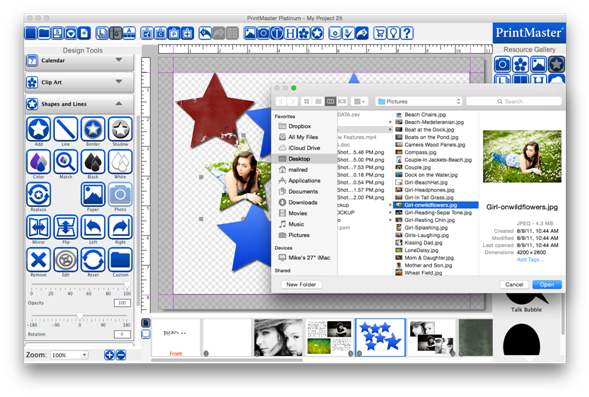
1. Select a shape on your page.
2. Click on the Paper icon.
3. Select a background paper and click ok.
Fill
shape with a photo.
1.
Select a shape on your page.
2.
Click on the Photo icon.
3.
Select an image from your computer and click ok.
Line tool / editor
You
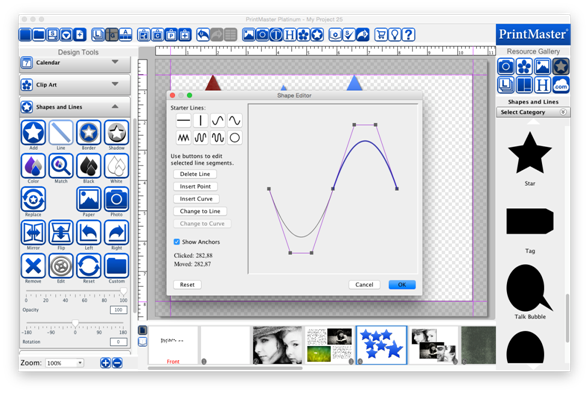
can add points or curves to the line to create very distinct custom lines. We also have Starter lines, prebuilt with
curves, zigzag, waves, etc.
1.
Open the Shapes and lines tab under Design Tools.
2.
Click on the Line icon.
3.
In the Line Editor dialog select one of the starter lines.
4.
You may change to another starter line at any time.
5.
To customize a starter line select any part of the line to
bring up the edit buttons.
6.
You may delete a line, insert a point, curve or change
between line & curve using the buttons on the left of the editor.
7.
To adjust a line or curve select it with a left click, then
drag one of the grey handles.
8.
When you are satisfied with the line you have click OK to
apply it to your page.
Related Topics