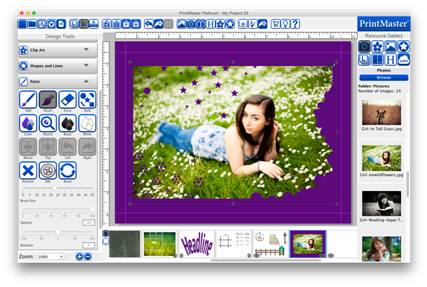
Fill space behind clip art images with a solid color, paint over parts of a photo so that it blends into your background, or draw on the page.
Icon Descriptions:
Add – Add a paint layer to your page.
Brush – Drag your cursor within the paint layer to add color.
Erase – Drag your cursor within the paint layer to remove added color.
Style – Set the brush style from available shapes.
Color – Set the color of the brush.
Match – Use the color picker to set the brush color from an existing color in the project.
Black – Set the color of the brush to black.
White – Set the color of the brush to white.
Mirror – Flip the paint layer horizontally.
Flip – Flip the paint layer vertically.
Left – Rotate the paint layer 90 degrees left.
Right – Rotate the paint layer 90 degrees right.
Remove – Delete the selected paint layer.
Edit – Toggle in and out of the paint mode.
Reset – Reset the paint layer to the originally added state.
Brush Size – Drag left to make the brush or eraser smaller, drag right to make it larger.
Opacity
– Drag the slider left or right to increase or reduce the paint transparency.
Rotation
– Drag the slider left or right to apply a rotation.
Related Topics