·
Make sure your album is in Spread mode and that you have a
total of three pages (Excluding the Front and Back Pages.)
·
Place an object in the middle of two pages. (Excluding the
Front and Back pages)
·
Right-click on the object and choose Span Pages.
Photo Layouts
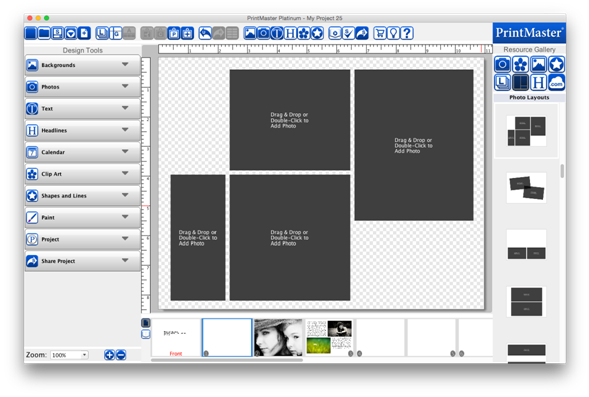
Layouts are used as a guideline for quick photo and text placement.
1.
Click on the Layout icon in the Resource Gallery (right
side).
2. Double-click or
drag and drop one of the available layouts to apply it to the page.
Note: Choosing a
layout with fewer photos than the current page, will remove photos from the
page.
You
can save created layouts for later use by going to the File menu > Save
Photo Layout.
Related Topics