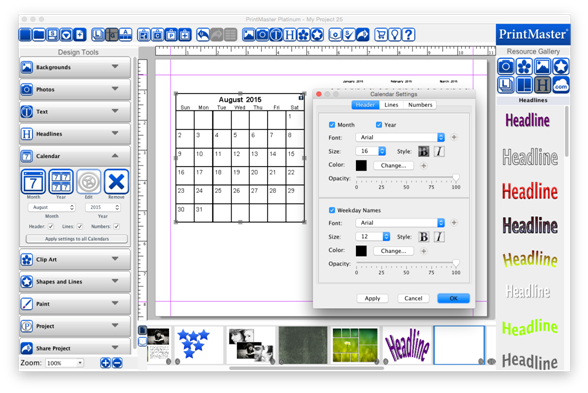
Control the appearance of the calendar in great detail.
Header Settings
·
Toggle the month check box to hide or show the month on the
selected calendar.
·
Toggle the year check box to hide or show the year on the
selected calendar.
·
Toggle the Weekday Names box to hide or show the names of
the days in header.
·
Font – Set a font for the header or weekday names.
·
Size – Set the font size for the header or weekday names.
·
Click on B (bold) or I (italic) next to Size to apply the
selected formatting style.
·
Click on the Change button to change the text color.
·
Drag the Opacity slider to increase or reduce the
transparency.
·
Click OK to apply settings.
Line Settings
·
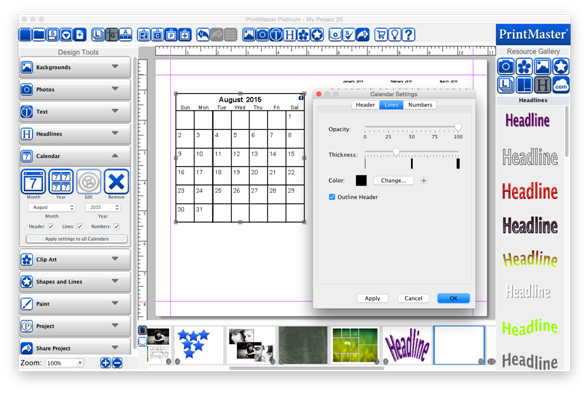
Drag the Opacity slider to increase or reduce the
transparency.
·
Drag the Thickness slider to make the lines thicker or
thinner. Please note that due to canvas
scaling, very thin lines may not appear correctly on the screen, but will print
out correctly.
·
Click on the Change button to change the color of the
calendar grid lines.
·
Toggle the Outline Header box to hide or show a box around
the header.
·
Click OK to apply settings.
Numbers Settings
·
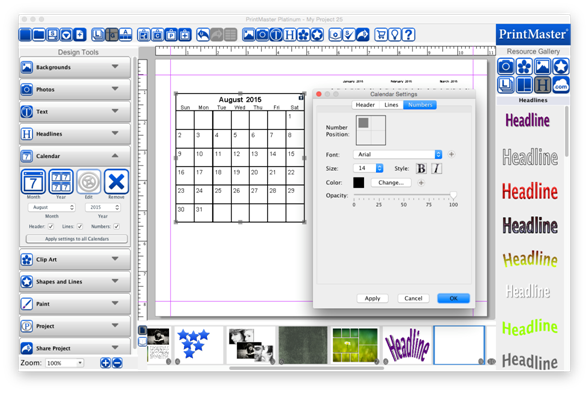
Select an area in the Number Position box to choose where to
display the day numbers.
·
Font – Set a font for the numbers using the drop down.
·
Size – Set a size for the numbers using the drop down.
·
Select B (bold) or I (italic) to apply the selected
formatting style to the day numbers.
·
Click on the Change button to change the text color.
·
Drag the Opacity slider to increase or reduce the
transparency.
·
Click OK to apply settings.
Related Topics