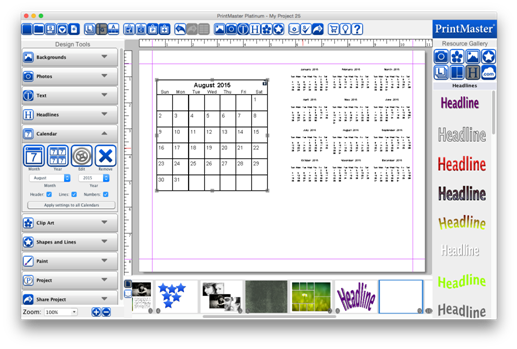
Calendar allows you to add a dynamically adjustable month or
year calendar to the page.
Icon Descriptions.
Month – Add a calendar month to your page.
Year – Add a calendar year to your page.
Edit – Adjust the header, line, and date appearance of the
selected calendar.
Remove – Delete the selected calendar from the page.
Month – Set a desired month for the selected calendar.
Year – Set a desired year for the selected calendar.
Header – Toggle the header box to show or hide the month or
year header.
Lines – Toggle the lines box to show or hide the separating
grid lines.
Numbers – Toggle the numbers box to show or hide the
numbered dates.
Apply settings to All Calendars – Applies the current calendar
appearance to all calendars.
To add a calendar to a page:
1.
Open the Calendar tab and click on the Month, or Year icon.
2.
The calendar grid will appear in the middle of the page.
3.
Drag from the center of the calendar to adjust the position.
4.
Drag from the handles to adjust the size.
·
To enter an exact size right-click on the calendar and
choose Edit Object.
Related Topics
Using PrintMaster
Calendar Settings