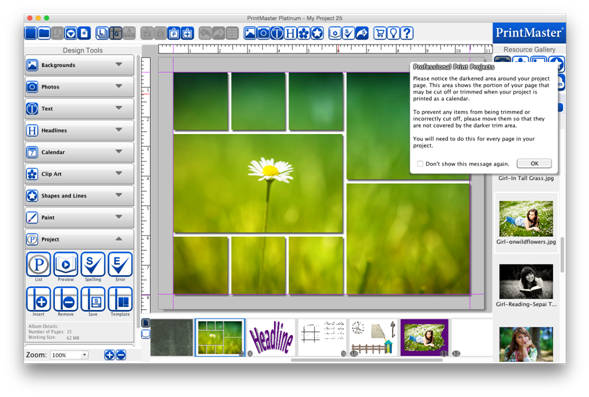
Bleed areas display
which portions of your project may be trimmed.
1.
Go to the View menu > Bleed area.
2.
From the submenu that appears, choose the option that
corresponds to your output type.
·
The gray areas around pages indicate where the project will
likely be trimmed.
·
Any critical objects (photos, clip art, shapes, titles,
etc.) should be kept out of these gray shaded areas.
·
The bleed areas are not exact, and should only be considered
estimates – it is always wise to allow a little extra space as a margin of
error.
Related Topics